screenplay
Introduction
When recording a terminal demonstration, the most frustrating part is having to restart the entire recording after a typo, a forgotten command, or a small change in the procedure. A normal shell script solves the automation problem, but it does not reproduce the experience of an interactive terminal session.
screenplay.sh bridges this gap.
It reads commands from a runfile and plays them back as if they were entered manually at the command prompt. Commands are displayed character by character, the virtual command prompt is shown, pauses can be inserted, and command output appears in real time exactly as it would during an interactive session.
The result is a repeatable terminal performance: a demo can be recorded again and again without manually typing every command.
How it works
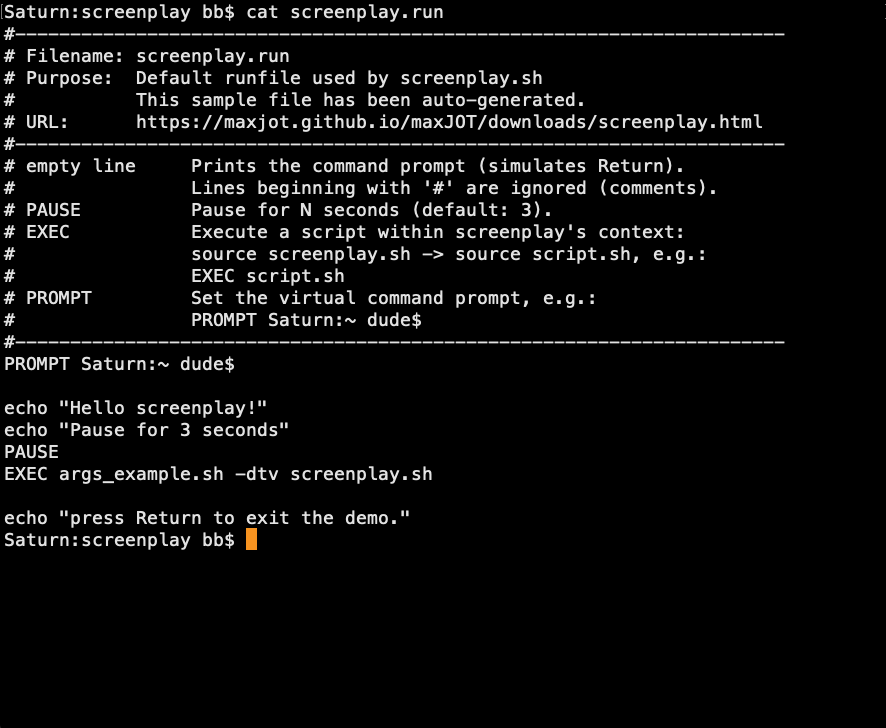
A screenplay runfile is a plain text file containing the commands that would normally be entered at the shell prompt.
For example:
#----------------------------------------------------------------------
# Filename: screenplay.run
# Purpose:  Default runfile used by screenplay.sh
#           This sample file has been auto-generated.
# URL:      https://maxjot.github.io/maxJOT/downloads/screenplay.html
#----------------------------------------------------------------------
# empty line     Prints the command prompt (simulates Return).
#                Lines beginning with '#' are ignored (comments).
# PAUSE          Pause for N seconds (default: 3).
# EXEC           Execute a script within screenplay's context:
#                source screenplay.sh -> source script.sh, e.g.:
#                EXEC script.sh
# PROMPT         Set the virtual command prompt, e.g.:
#                PROMPT Saturn:~ dude$
#----------------------------------------------------------------------
PROMPT Saturn:~ dude$

echo "Hello screenplay!"
echo "Pause for 3 seconds"
PAUSE
EXEC args_example.sh -dtv screenplay.sh

echo "press Return to exit the demo."
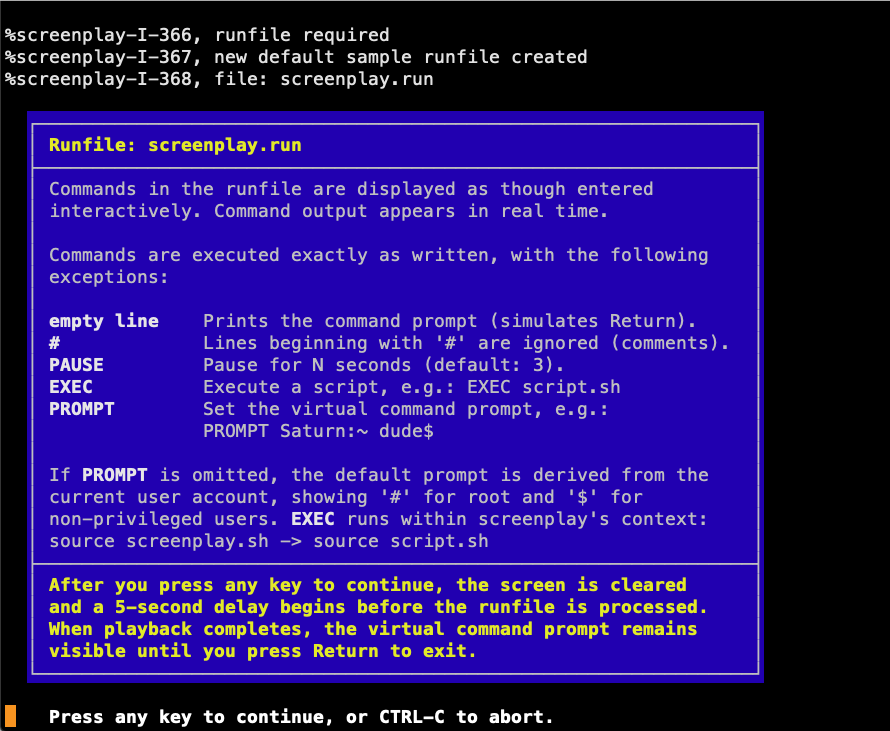
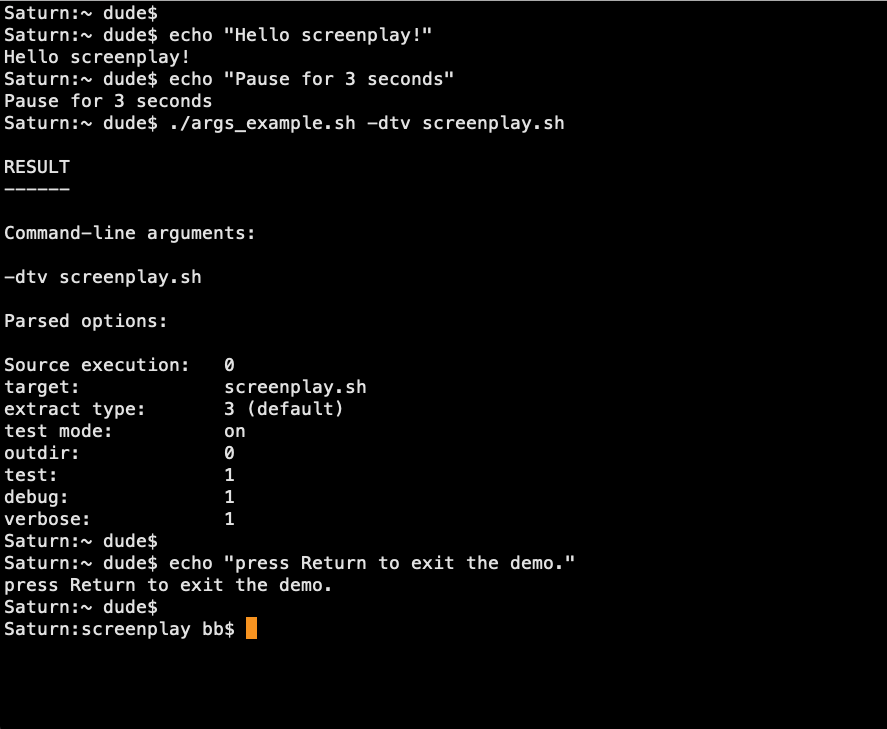
During playback, screenplay.sh displays the virtual prompt, types each command visually, executes it, and continues with the next line.
Runfile directives
In addition to normal shell commands, screenplay.sh supports a small number of directives:
-
PROMPT- defines the virtual command prompt shown during playback. -
PAUSE- inserts a delay before continuing. -
empty lines - simulate pressing Return at the command prompt.
-
comment lines beginning with
#- ignored during playback. -
EXEC- executes another script within the screenplay context.
The EXEC directive allows complex demonstrations to be divided into
smaller reusable scripts while still maintaining the same shell
environment.
Execution context
When screenplay.sh is sourced, scripts executed through EXEC or
explicit source commands run inside the screenplay shell context. This
allows helper scripts to define variables, functions, or prepare state
for later commands in the runfile.
When a script is executed normally using ./script.sh, it follows the
standard shell behaviour and runs in its own process.
Typical uses
screenplay.sh is useful for:
-
recording software demonstrations
-
creating repeatable terminal tutorials
-
preparing conference or presentation demos
-
producing training material
-
testing command-line workflows visually
The goal is not to replace shell scripting. Traditional scripts are excellent for automation. screenplay.sh is designed for something different: making an automated terminal session look and behave like a human-driven interactive session.